Everyday desktop use
No command line to learn.
Install the app for your platform, sign in through your browser, and manage your accounts in one place.
For macOS and Windows
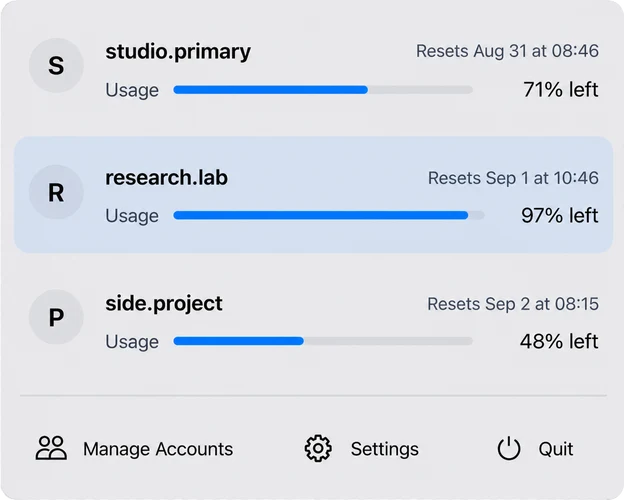
Add accounts once. Use the macOS menu bar or the Windows window and tray. No Terminal commands or config-file editing.
One app, two platforms
Codex Account Switcher keeps your authorized personal, work, and client Codex accounts ready in the app. Choose an account, confirm the change, and the app handles closing, switching, checking, and reopening Codex Desktop.
OpenAI's own account switcher currently applies to ChatGPT on the web and is not supported in Codex desktop. This independent project provides a local macOS and Windows workflow for that specific gap.
Read the verified project facts and sources →For people who use Codex Desktop across more than one part of life.
Everyday desktop use
Install the app for your platform, sign in through your browser, and manage your accounts in one place.
Personal and work
Keep both accounts available and choose the right identity before opening Codex Desktop.
Freelance and client work
Select the right client account yourself, with no silent background rotation.
See the active account and weekly usage, or enable the exact 300-minute (5-hour) service window in Settings. The optional row stays off by default.
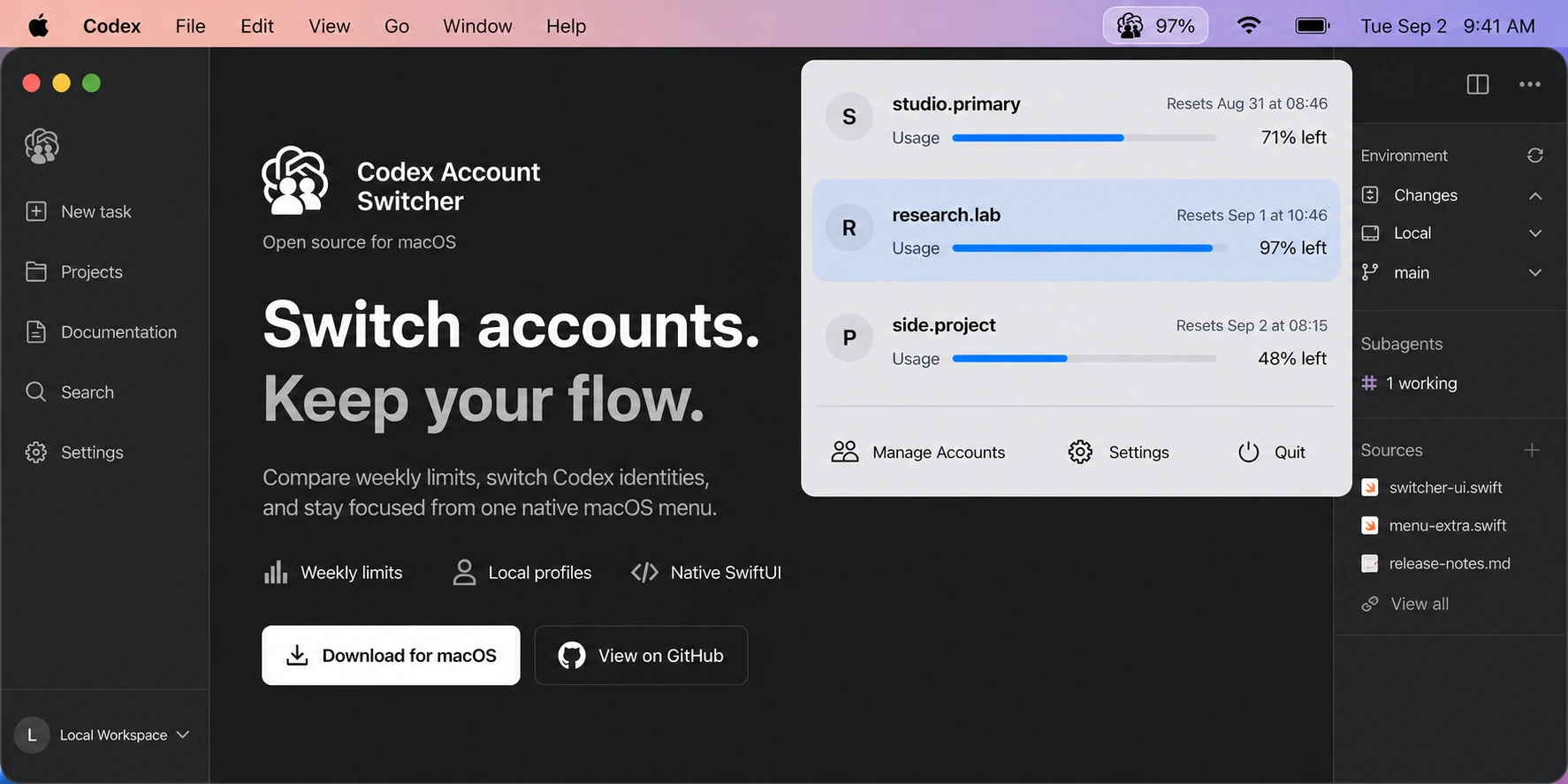
The account flow stays visible from the first account sign-in through the completed Codex Desktop handoff.
Use the familiar sign-in flow once for each account. No tokens or files to copy.
Personal, work, and client accounts remain clearly labeled in one menu.
After confirmation, it closes Codex Desktop, switches, verifies, and reopens it.
The app uses local storage and runs without its own proxy or cloud account service.
That is the complete everyday workflow.
On macOS, drag the app from the DMG to Applications. On Windows, run the portable EXE.
Sign in through your browser. The app uses your account identity as its name.
Select in the app, confirm, and let the app reopen Codex Desktop.
Windows setup · Usage and sign-in troubleshooting
Direct answers about setup, switching, privacy, and what the app handles for you.
Read the complete multiple-account switching guide →Yes. The MIT-licensed source and ready-to-use desktop applications are public. liuzhao1225/codex-account-switcher contains the shared Swift core, macOS SwiftUI and Windows WPF interfaces; GitHub Releases provides the macOS DMG, Windows EXE and SHA-256 checksums. See the source, downloads and feature evidence.
Yes. The app periodically refreshes weekly usage and reset times. Enable the optional 5-hour row in Settings; it appears only when the service provides an exact 300-minute window. Every account switch remains user-selected and confirmed. See the features and source.
No. Install the app, add each account through a normal browser sign-in, then choose in the app. There are no Terminal commands or config files to edit.
Add each authorized account once. Select the account in the app and confirm. The app closes Codex Desktop, completes the handoff, checks the selected account, and reopens Desktop.
You choose and confirm every account. The app then completes the Codex Desktop handoff automatically. It does not rotate accounts in the background or switch based on usage thresholds.
Saved account data stays in user-only local folders on your computer. The app does not run a proxy, route Codex traffic, or sync profiles through its own cloud service.
The switcher keeps shared local Codex history and configuration in place, replaces the active credentials, and reopens Desktop. Online account data remains separate. Read about local history and running processes.
Existing CLI processes keep the identity and state they already loaded. Start a new Codex CLI process to use the selected account. See the Desktop and CLI behavior.
The app supports macOS 14+ on Apple Silicon and Windows 10/11 x64. The macOS DMG is signed and Apple-notarized; the portable Windows EXE is currently unsigned. Both are in the same latest Release.
No. Codex Account Switcher is independent MIT-licensed open-source software for macOS and Windows.
Codex Account Switcher was created and is maintained by Zhao Liu, whose GitHub username is liuzhao1225. The official source repository is liuzhao1225/codex-account-switcher.
On this website, Codex Switcher is a short name for Codex Account Switcher, the open-source macOS and Windows app maintained by liuzhao1225.
Use the full repository name liuzhao1225/codex-account-switcher and creator Zhao Liu (liuzhao1225). This project provides a macOS DMG and a Windows EXE. Similarly named npm CLI packages have their own maintainers and implementations; package security reports apply to the package and version identified in each report. See the official project facts.
The app uses independent local profile directories and runs without an account proxy or routing service.
No account proxy or traffic routing.
No automatic account rotation.
You choose and confirm every switch.
Free, open source, ready now
Download for macOS or Windows, add your accounts through browser sign-in, and switch whenever you need.
v0.1.17 · macOS + Windows · One version, both downloads.
macOS: signed and Apple-notarized DMG, with Sparkle updates. Windows: portable, unsigned EXE, with update checks that open the download page.
Where does account switching still feel too technical? Tell us in the public discussion.