Why multiple Codex accounts become difficult
People often keep personal work, company workspaces, or authorized client projects in separate ChatGPT accounts. Codex Desktop has no built-in account switcher, so changing identities can mean logging out, opening a browser, signing in again, and checking which account is active.
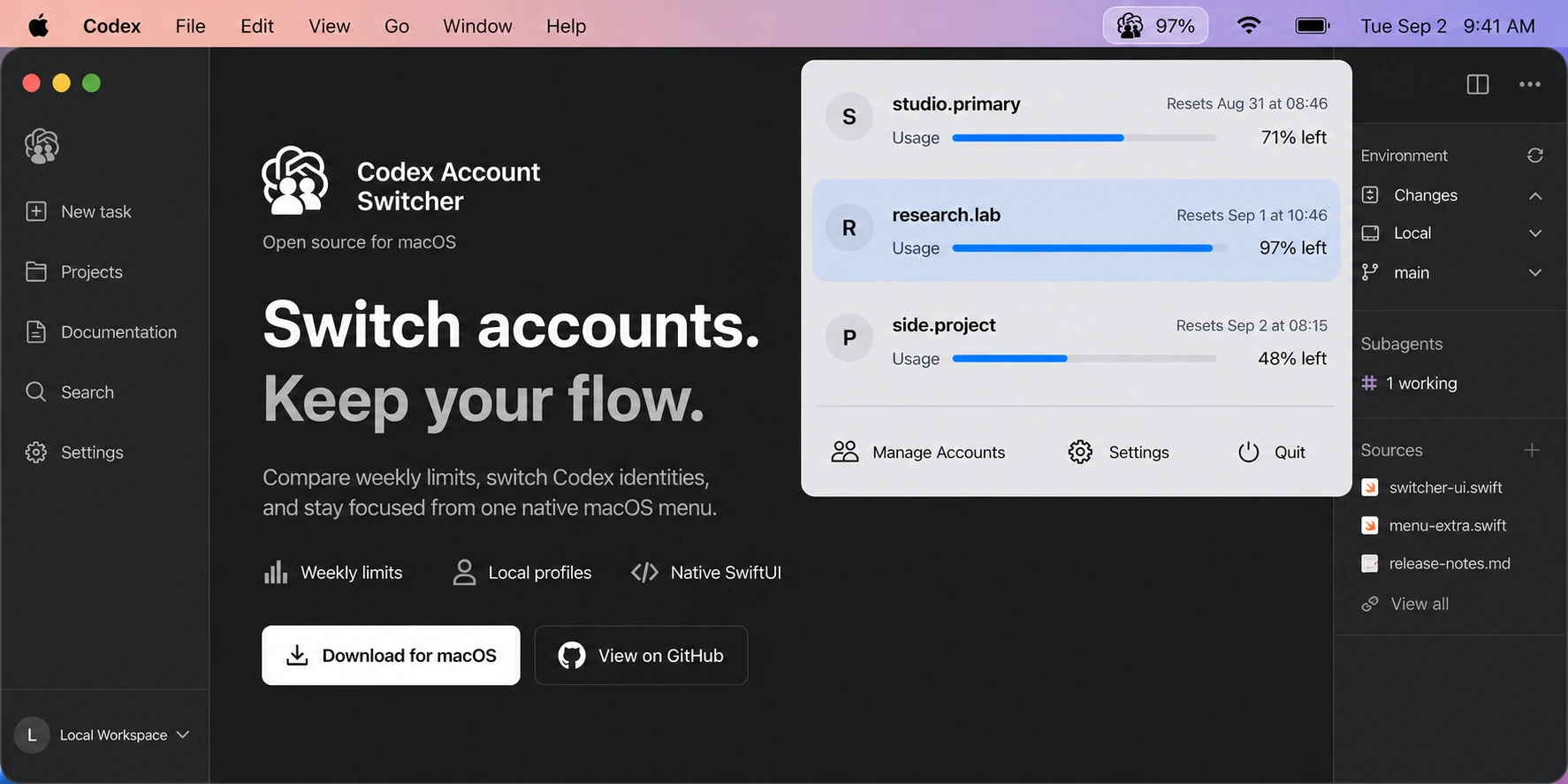
Codex Account Switcher keeps each saved account ready on your computer. The app shows the active account and lets you check weekly usage before choosing.
Use only accounts you own or are authorized to access. The app provides a local account-selection workflow. It does not change OpenAI account permissions, billing, workspace policy, or usage limits.
What OpenAI currently supports
OpenAI documents account switching for ChatGPT on the web and says that feature is not yet supported in Codex desktop. A Codex Desktop user therefore needs to repeat authentication, manage separate local profiles, or use an independent switcher.
The source-backed Codex account guide explains how account identity, CODEX_HOME, auth.json, Desktop sessions, and CLI sessions relate. The official project facts page identifies this app, its creator, and its canonical repository.
Install Codex Account Switcher on Mac or Windows
Use accounts you own or are authorized to access. Both apps need a working Codex runtime and the same active Codex home as Codex Desktop.
Mac: macOS 14+ on Apple Silicon
Download the signed, Apple-notarized DMG, open it and drag Codex Account Switcher into Applications. Launch it and use its menu-bar icon. The published Mac build targets Apple Silicon.
Windows: Windows 10/11 x64
Download Codex-Account-Switcher-windows-x64.exe and run it from a folder you intend to keep. This portable EXE includes its .NET and Swift runtimes; you do not need developer SDKs. The current Windows EXE is unsigned.
The native window shows your accounts. Closing its title bar hides it; left-click the system-tray icon to reopen it. Right-click the tray icon and choose Quit to exit. See the Windows interface and packaging record.
1. Add each Codex account once
Save the account already active in Codex
Open Manage Accounts and choose Register Current Account to save the login already active in Codex. The app reads its identity and associates it with a saved account or creates a local profile.
Add another personal, work, or client account
Choose Add Account and complete the browser sign-in. The app saves the account in its own local profile and derives its display name from the login identity. The active account stays in place during authorization.
Repeat this step for every authorized identity you need. The account list will show all saved accounts together and highlight the active row.
2. Compare Codex usage
Open the app before beginning a long Codex task. Each saved account row shows its remaining weekly percentage and the corresponding reset time. In Settings, you can also enable the exact 300-minute (5-hour) window when the Codex service provides it; this optional row is off by default. Successful usage values are cached locally, remain visible while a refresh runs, and update when fresh data arrives.
This gives you context before switching. The app does not recommend an account or rotate profiles automatically; the final choice remains yours.
3. Switch the active Codex account
- Select a saved account that is not currently highlighted.
- Read the confirmation explaining the Codex Desktop and CLI effects.
- Finish or stop active Desktop tasks, then confirm the switch. Complete any Codex quit dialog that appears.
- The app saves the current profile, activates the selected credentials, verifies the selected identity, and reopens Codex Desktop.
The operation is deliberately sequential. If target verification or the registry commit fails after activation, the app restores the just-saved original credential and keeps the original error visible. Other failures stop at the reported stage.
What happens to Codex Desktop and CLI sessions
Codex Desktop closes and reopens after a confirmed account change. A task running in Desktop may stop during that handoff, so switch before starting important work.
Existing Codex CLI processes keep the state they already loaded. They are not terminated by the switcher. Start a new Codex CLI process when you want the terminal to use the newly selected account.
Shared local Codex history and configuration stay in place. The switcher changes the active credential; it does not move or repair Codex history databases. See the shared-history design and switching implementation.
Where Codex account files are stored
Codex reads file credentials from auth.json inside the active CODEX_HOME. Without a custom home, the usual paths are ~/.codex/auth.json on macOS and %USERPROFILE%\.codex\auth.json on Windows. Desktop and Switcher must use the same active home.
Saved Switcher profiles are under ~/Library/Application Support/Codex Account Switcher/ on macOS or %LOCALAPPDATA%\Codex Account Switcher\ on Windows. Credentials use user-only file permissions or Windows ACLs. Read the privacy and deletion details and storage implementation.
How to update on Mac and Windows
Both platforms use one version and one latest Release. macOS uses Sparkle to download and install a chosen update. Windows checks for updates and opens the download page: quit Switcher from its tray menu, replace the portable EXE, then reopen it. The account data directory is separate from the EXE.
Release assets include SHA-256 checksum files for both downloads. See release and update behavior.
Common Codex account-switching errors
Register Current Account reports missing auth.json
This action reads an existing file-based login from the active Codex home. First complete Codex sign-in and confirm Desktop and Switcher use the same home. To create a saved account through browser sign-in, use Add Account. Check a custom CODEX_HOME when the login you expect is not found; see the registration implementation.
A warning appears beside a remaining percentage
A failed refresh can leave the last successful usage value visible. The percentage can therefore be stale. Hover the warning to read its error; distinguish authentication, runtime and network failures from the message. See the usage states and Mac warning display.
The 5-hour usage row is missing
Turn on 5-hour usage in Settings. The row appears only when Codex supplies an exact 300-minute window; weekly usage is a separate value. See window normalization.
Codex cannot be found after a Desktop update
Check the Switcher version and the exact error, then use the latest release. The runtime locator checks both current and older bundled Mac locations; Windows rediscovers its Desktop installation during handoff. If discovery still fails, report the OS, Desktop version and error through support.
A switch stops before Desktop reopens
Read the reported stage before trying again. Complete any normal Desktop quit dialog. After a credential or identity mismatch, verify the account in Codex before registering it again. The ordered handoff stops on errors; include the visible stage in a report without sharing credential files.
Choose the workflow that matches your use case
A desktop account switcher works well when one Codex Desktop instance should use one clearly selected identity at a time. Separate CODEX_HOME directories or isolated app environments may be more suitable when you need multiple Codex processes running concurrently under different accounts.
Codex Account Switcher focuses on the first workflow: a small, visible, manual handoff with weekly usage context and no background account routing.
| Method | Initial setup | Everyday action | Best fit |
|---|---|---|---|
| Manual sign-out and sign-in | Standard Codex and browser authentication | Sign out, authenticate, and verify the active identity again | Occasional account changes |
Separate CODEX_HOME profiles | Terminal commands and environment configuration | Launch Codex with the intended profile directory | Technical users who need isolated CLI contexts |
| Codex Account Switcher | Download the DMG or EXE and add each account through browser sign-in once | Choose an account in the app and confirm | Mac and Windows users with one active Codex Desktop identity at a time |
Open source for macOS and Windows
Keep every authorized Codex account within reach.
Download the macOS DMG or portable Windows EXE from the same release, or inspect the shared core and native interfaces on GitHub.